

MAKCU
Flash the firmware, install the driver, and connect your MAKCU device to bridge mouse input between your Radar PC and Game PC.
📋 Requirements
All steps must be performed on your Second PC (Radar PC).
Incompatible Mice
The following mice are known to be incompatible: ROG Omni receiver, Vaxee NP01S v2 wireless, Razer Viper 8K, HyperX Pulsefire Haste, Motospeed V70, Corsair Nightsword.
⚡ Flashing the MAKCU
01 — Download MAKCU Tool
The MAKCU.exe tool is available from the community Discord. Request access to download it before proceeding.
02 — Flash Left Port (Enter Mode)
- Run
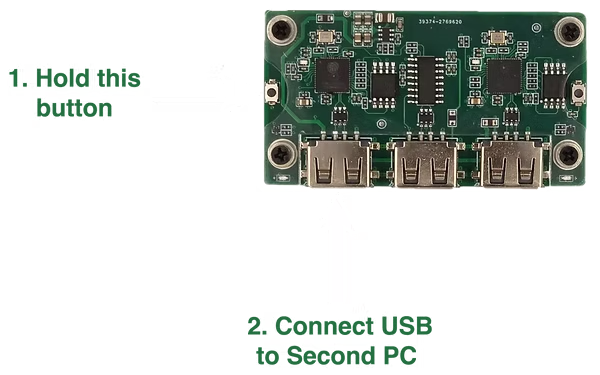
MAKCU.exeon your Second PC. - Hold down the LEFT button on the MAKCU.
- While holding, connect a USB cable from your Second PC to the LEFT port on the MAKCU.
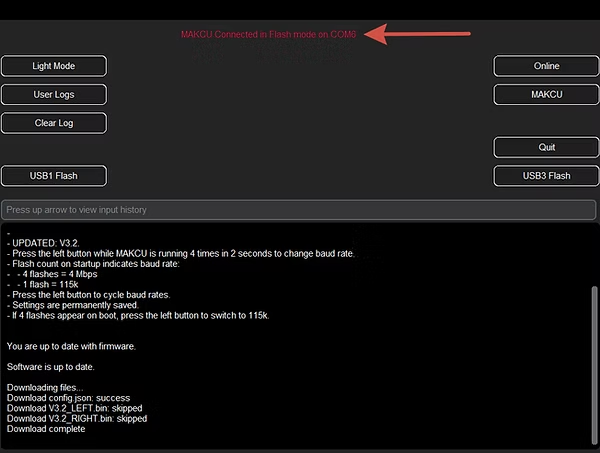
- Release the button when you see connection text appear in the app.
03 — Flash Left Port (Execute)
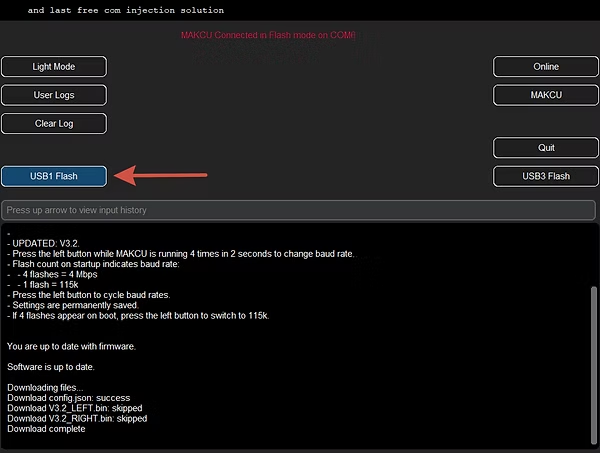
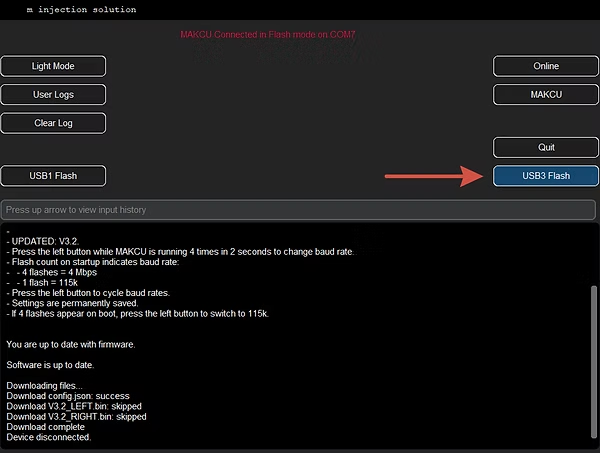
In the MAKCU application, click USB1 Flash and wait for the process to complete.
04 — Unplug USB Cable
Unplug the USB cable from the MAKCU completely before continuing.
05 — Flash Right Port (Enter Mode)
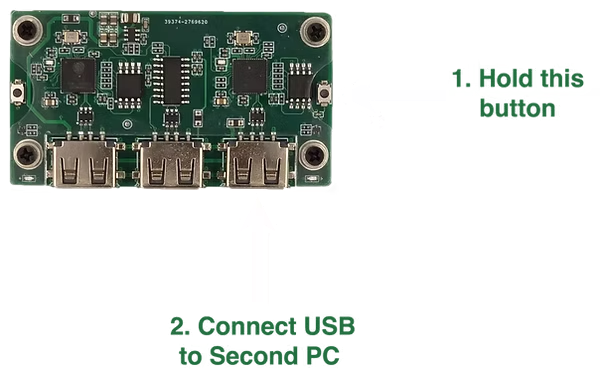
- Hold down the RIGHT button on the MAKCU.
- While holding, connect the USB cable from your Second PC to the RIGHT port on the MAKCU.
- Release the button when connected.
06 — Flash Right Port (Execute)
In the MAKCU application, click USB3 Flash and wait for the process to complete. Unplug the cable when done.
💾 Driver & COM Port Setup
07 — Install CH343 Driver
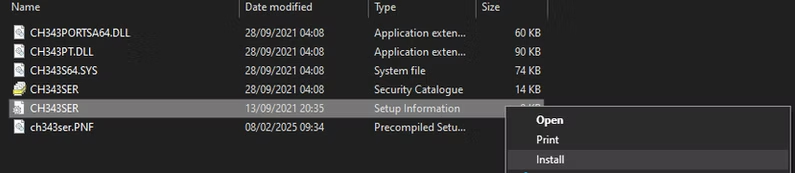
Extract the CH343 driver package and run the installer to complete the installation.
08 — Connect Middle Port
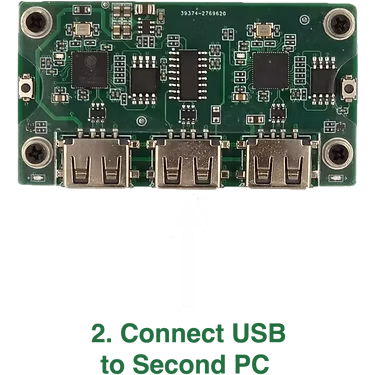
Connect a USB cable from your Second PC to the MIDDLE port on the MAKCU.
09 — Find COM Port
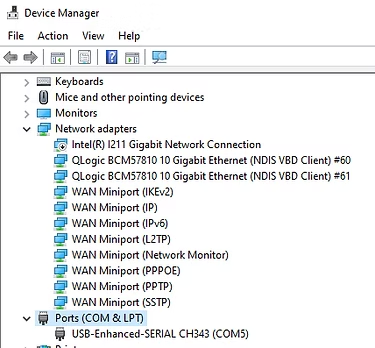
On your Second PC, open Device Manager → expand Ports (COM & LPT) → find USB-Enhanced-SERIAL CH343 and note the COM number (e.g. COM5).
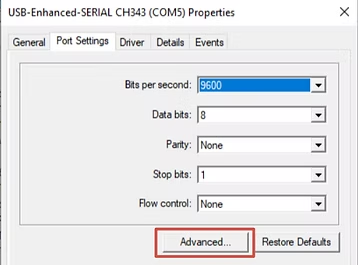
10 — Change COM Port Number
- Right-click
USB-Enhanced-SERIAL CH343→ Properties. - Go to Port Settings → Advanced.
- Select a COM number below 10 (e.g. COM1, COM3).
- Click OK.
- Close the MAKCU app, then unplug and re-plug the USB cable to restart.

🔌 Final Wiring
Make sure the USB ports are facing toward you before connecting cables.
12 — Test MAKCU
Run MAKCU.exe on your Second PC and click Test. If your cursor on the Main PC teleports, everything is working correctly.
A cursor teleport on the Main PC confirms the MAKCU is correctly bridging mouse input from the Radar PC.
🔧 Troubleshooting
Mouse doesn't work
- Ensure all three USB cables are connected correctly — Left to Main PC, Middle to Second PC, Right to Mouse.
- Verify your mouse is not on the incompatible list.
- Try a different USB port on the Main PC.
MAKCU.exe won't detect device
- Verify the CH343 driver is installed correctly.
- Check that the COM port is set to a number below 10 in Device Manager.
- Restart the MAKCU by unplugging and re-plugging the middle USB cable.
Cursor doesn't teleport during test
- Ensure both the Left (Main PC) and Middle (Second PC) USB cables are connected.
- Verify firmware was flashed successfully to both the Left and Right ports.
- Check that the mouse is connected to the Right port.