Dichen Fuser Setup
Step-by-step setup guide for the Dichen 5th / 6th Generation HDMI / DisplayPort Fuser.
⚠️ Before You Begin
The cables included with your Fuser are basic and may cause flickering, low refresh rates, or other signal issues. We strongly recommend purchasing certified HDMI 2.1 or DisplayPort 1.4 cables for the best experience.
- Disconnect all displays except your main monitor.
- Make sure the Fuser is powered off before connecting any cables.
- Use only certified HDMI 2.1 or DisplayPort 1.4 cables for best performance and signal stability.
🔌 Fuser Layout
On the back of the Fuser you'll find three labelled ports:
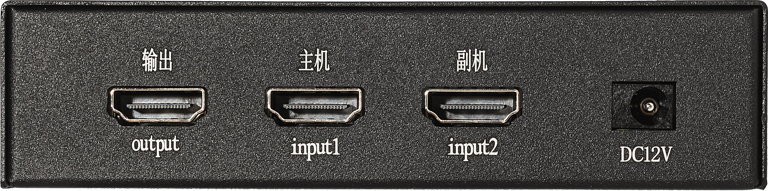
- Output — HDMI or DisplayPort
- Input 1 — HDMI
- Input 2 — HDMI
🔗 Connection Order (Fuser Off)
1️⃣ Output → Monitor
Connect DisplayPort 1.4 or HDMI 2.1 from the Fuser's Output port to your main monitor.
2️⃣ Input 1 → Game PC
Connect HDMI 2.1 or DP 1.4 from your Game PC's GPU to Input 1 on the Fuser.
3️⃣ Input 2 → Radar PC
Connect HDMI 2.1 or DP 1.4 from your Radar PC's GPU to Input 2 on the Fuser.
The Game PC's GPU must not be directly connected to any monitor. Unplug any direct HDMI or DisplayPort cable from your GPU to the monitor before setup.
Once all connections are made, power on the Fuser first, then both PCs.
Using lower-grade cables (HDMI 2.0 / DP 1.2) can result in no signal or screen flickering.
🖥️ Configure Display Settings
On Both PCs (before connecting to Fuser):
- Connect each PC directly to a monitor temporarily.
- Right-click the desktop → Display Settings.
- Under Multiple displays, select Extend these displays.
On the Radar PC (2nd PC) only:
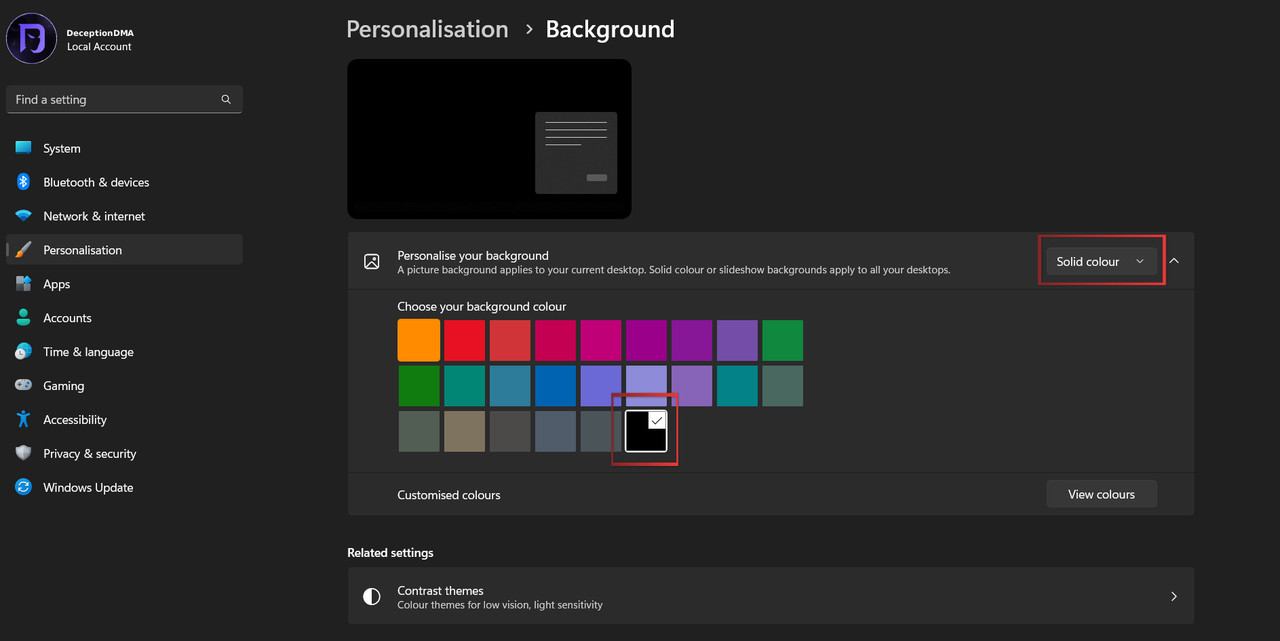
- Go to
Start → Settings → Personalization → Background - Set background to Solid colour → Black.
🔄 Reconnect Cables to the Fuser
- Ensure all three cables are connected to the Fuser as per the layout above.
- Confirm the monitor is no longer directly connected to the Game PC's GPU.
🎛️ Button Functions
Resolution Switch
Short press — cycles through output resolutions: 1920×1080 → 2560×1080 → 2560×1440 → 3440×1440 → 3840×2160
Long press (3s) — displays current resolution and refresh rate in the upper-left corner. Top line = Game PC, Bottom line = Radar PC.
Matting Intensity / Opacity
Short press cycles through 21 levels (0–20) of upper-layer image matting intensity. Default is 0 (light matting still applied).
If the fusion light is on but no overlay appears: set the Radar PC background to pure black, or press K2 to increase RGB intensity.
🔧 Troubleshooting
Desktop apps are merged / two search bars visible
Press K2 (Main Screen Mode) when no overlay is active.
Second monitor shows "No Signal"
Ensure the 2nd monitor is turned on and connected to its respective PC — not to the Fuser.
Refresh rate limited to 60Hz or 90Hz
Not all cables are HDMI 2.1 or DisplayPort 1.4. Replace with certified cables.
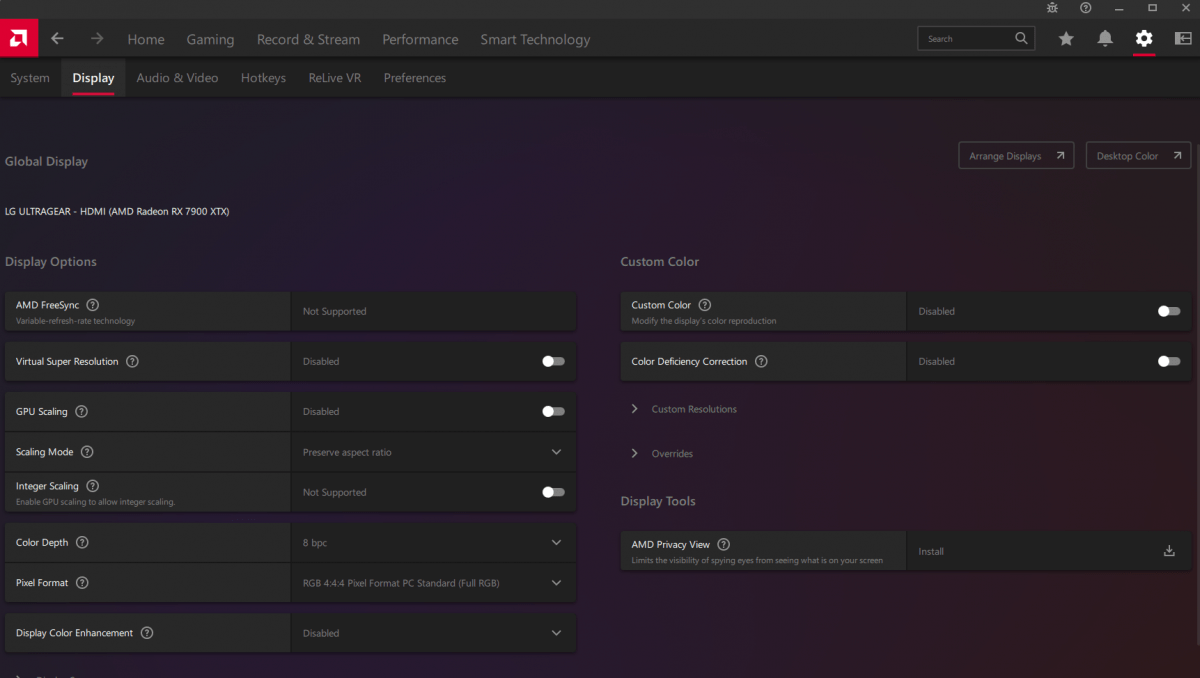
Pink / Purple hue or no output on screen
If you see a coloured hue on one of your displays after setup, ensure both displays are set to 8-bit depth and RGB colour format in your GPU control panel.
NVIDIA Control Panel
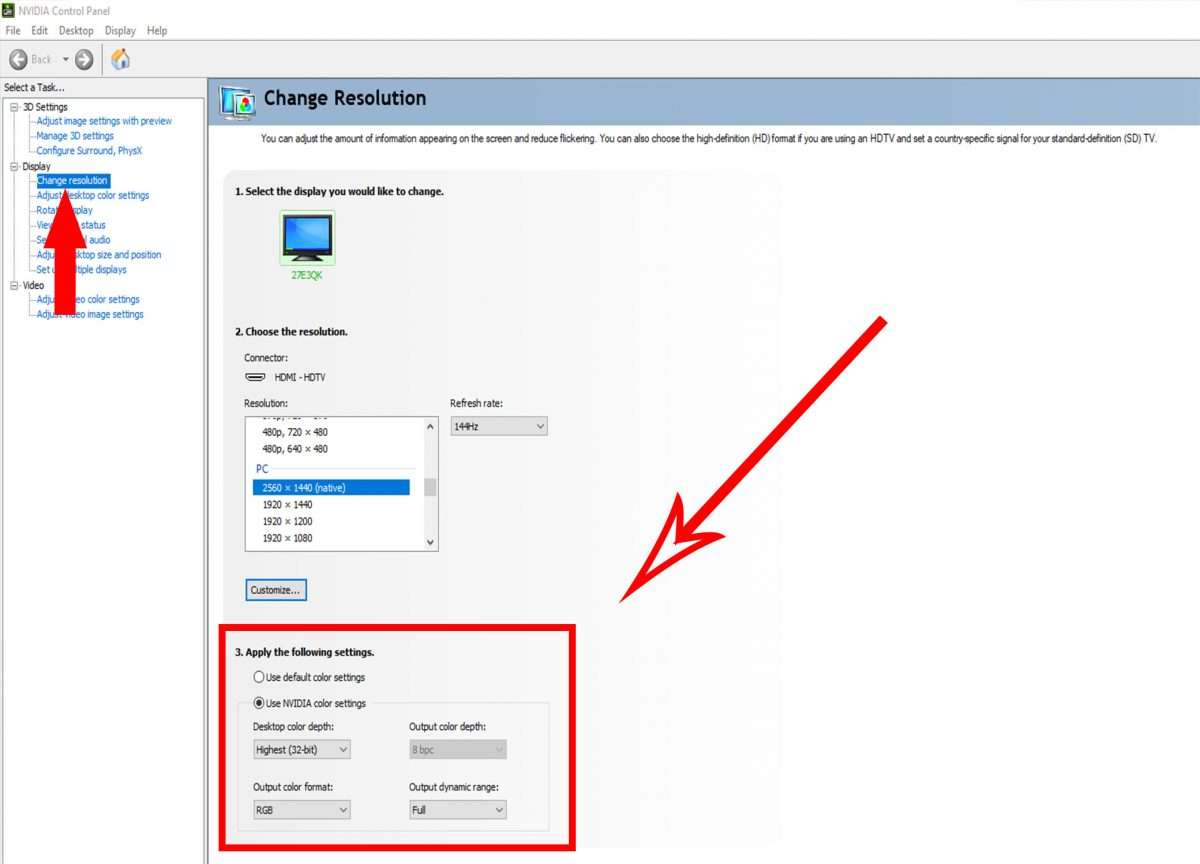
AMD Control Panel