

Ferrum Setup
Install the driver and Ferrum app, connect your board, and configure it to bridge your mouse and keyboard between your Main PC and Radar PC.
📦 Required Downloads
install.bat — Download ↗
ferrum-installer.exe — available in the Ferrum Discord ↗
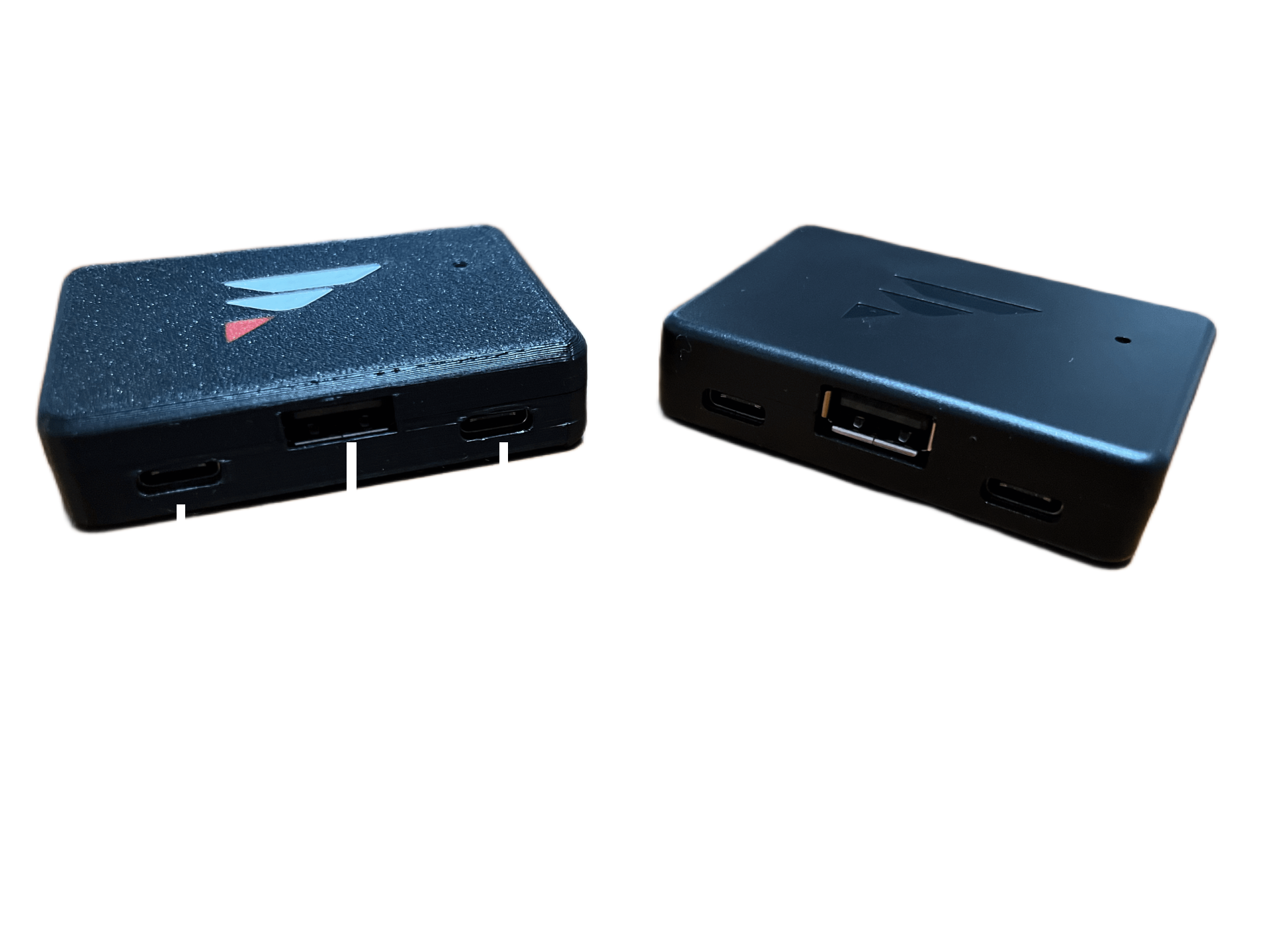
🔌 1. Connect USB Cables
Make sure the USB ports are facing toward you before connecting cables. The port labels below assume this orientation.
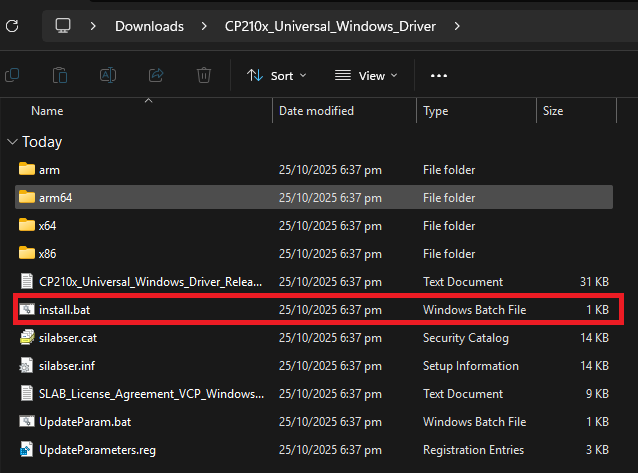
💾 2. Install CP210x Driver
- Extract
CP210x_Universal_Windows_Driver.zipto a folder. - Run
install.batto install the driver package for Windows.
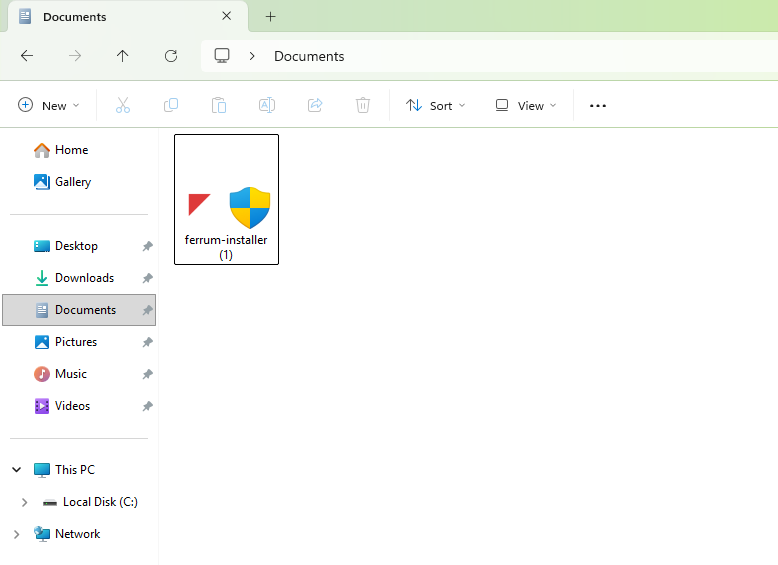
⚙️ 3. Install the Ferrum App
- Run
ferrum-installer.exeto install the Ferrum application. - Launch the Ferrum app once installation is complete.
If you see a Backend Status: Disconnected error after installing, try rebooting your PC and/or reopening the Ferrum app.
🖥️ 4. View Connected Boards
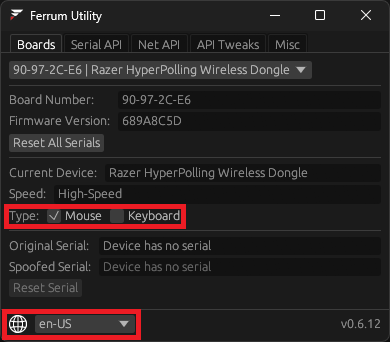
If everything was successful, your connected Ferrum board(s) will appear in the Boards tab.
If the menu shows No Boards Connected, verify your board is plugged in as shown in Step 1 and check your cables.
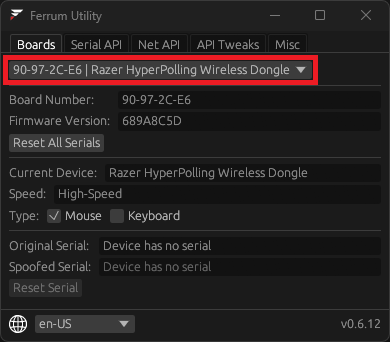
🖱️ 5. Select Device Type
- If your device is your main keyboard, select Keyboard only.
- If it is your main mouse, select Mouse (the default).
- If it handles both (e.g. a shared USB receiver/dongle), select Mouse and Keyboard.
You can also change your language in the bottom left corner of the app.
🔗 6. Connect Provider Software
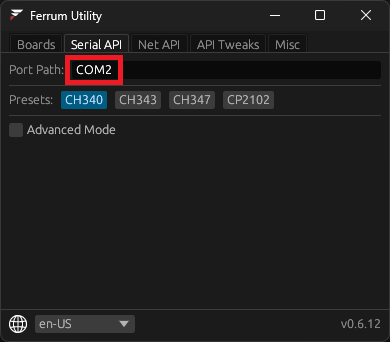
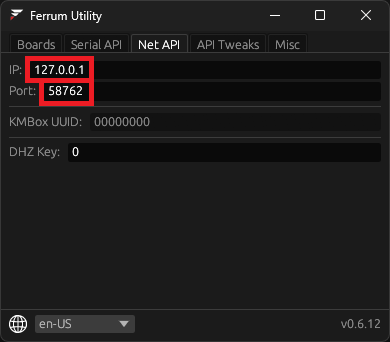
To connect your provider's software to Ferrum, use one of the following methods:
🔧 Troubleshooting
Backend Status: Disconnected
- Try rebooting your PC.
- Close and reopen the Ferrum app.
- Verify the CP210x driver was installed correctly.
No Boards Connected
- Make sure your Ferrum board is plugged in correctly as shown in Step 1.
- Ensure USB cables are good quality and properly connected.
- Try different USB ports on your PC.
Mouse or Keyboard not working
- Verify you selected the correct device type (Mouse, Keyboard, or Both).
- Ensure all USB connections are secure.
- Try reconnecting the device to the Middle USB-A Port.
Still stuck? Join the Ferrum Discord ↗ for dedicated support from the Ferrum team.