

Documentation
EDID Spoofing
EDID Spoofing
Inject your main monitor's EDID profile into the Fuser so it accurately reports your display's capabilities to both PCs.
Note: Our latest Fusers no longer include a USB-C port and perform EDID spoofing automatically. This guide is only needed for older Fuser models with a USB-C port.
📋 1. Obtain the EDID of Your Main Monitor
Install MonitorAssetManager
- Download and install MonitorAssetManager (mi_setup.exe) ↗ on your Game PC.
- Connect your GPU directly to your monitor — no Fuser or other inputs connected.
- Run
MonInfo.exe.
Save the EDID File
- In MonInfo, select your main monitor (usually the first one listed).
- Go to File → Save as...
- Save the file as an EDID
.binfile somewhere you'll remember.
Transfer the .bin file to your Radar PC (2nd PC) via USB drive, Discord, or any other method.
💉 2. Inject the EDID into the Fuser
Connect the Fuser
- Connect a USB-C cable from the Fuser's Type-C port to your Radar PC (2nd PC).
- Plug the Fuser into a power source and turn it on.
Install the Driver
- Download and install the CH34XX Driver ↗ on your Radar PC.
Open the Injection Tool
- Download and launch the EDID Injection Tool ↗.
- If your system lacks Chinese language support, some text may appear as
???— this will not affect functionality.
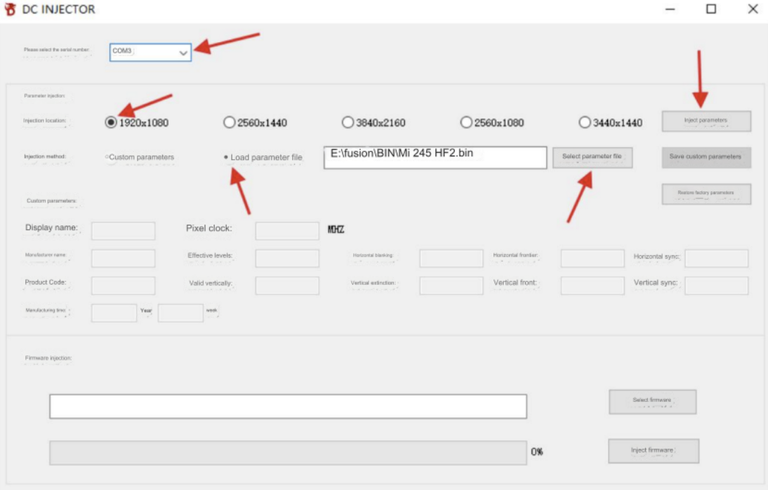
Perform the Injection
- Select the serial port number in the tool — check Device Manager if unsure.
- Choose the injection location that matches your monitor's resolution.
- Select "Load Parameter File" as the injection method.
- Open your saved
.binEDID file. - Click Inject Parameters and wait for completion.
The screen may briefly go black during injection. A success prompt will appear when finished.
Finalize the Connection
- Power off the Fuser.
- Disconnect the USB-C cable.
- Connect the Fuser to your monitor as normal.
Was this helpful?
Prev
Dichen Fuser Setup
Next
MAKCU