

Documentation
DATA Driver Setup
DATA Driver Setup (2nd PC)
Ensure the DMA cable is properly connected to the DATA port before proceeding with this step.
🔍 1. Check Your Current Driver Status
- Open Device Manager (Windows key → type
Device Manager) - Look for one of these scenarios below and follow the matching action.
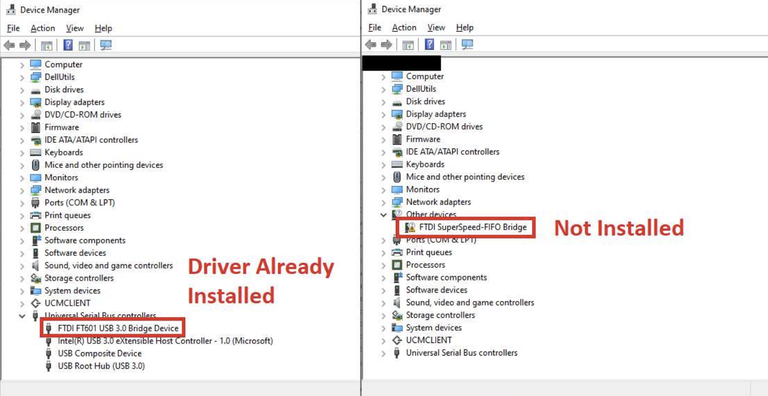
✅ Correct Driver — No action needed
Device appears as: FTDI FT601 USB 3.0 Bridge Device
Located under: Universal Serial Bus devices — Working properly → Skip this guide.
⚠️ Missing Driver — Install now
Device appears as: FTDI SuperSpeed-FIFO Bridge
Located under: Other devices with a yellow exclamation mark → Proceed with installation below.
❌ Wrong Driver — Remove first
Device appears as: FTDI SuperSpeed-FIFO Bridge
Located under: Universal Serial Bus devices — Right-click → Uninstall device → check Delete driver, then proceed below.
📥 2. Download the Driver
- FTD3XX Driver v1.3.0.10 ↗ — Primary download
- FTD3XX Driver v1.3.0.8 ↗ — Backup (if above doesn't work)
⚙️ 3. Install the Driver
- Extract the downloaded
.zipfile. - Run the
.exeinstaller. - Follow the installation wizard.
- Restart your computer if prompted.
🔄 4. Verify Installation
- Re-open Device Manager.
- Confirm the device now shows as
FTDI FT601 USB 3.0 Bridge Deviceunder Universal Serial Bus devices. - If issues persist, try the backup driver link above.
Next Step: You're now ready to proceed with Speed Test (2nd PC).
Was this helpful?