

Hardware Setup (Main PC)
Follow these steps to physically install your DMA card and configure your Game PC before proceeding to the 2nd PC setup.
⚠️ Critical — Read Before Installing
Before installing your card into your PC, please ensure that the four screws on the back of the card are fully tightened. During shipping, screws may occasionally become loose. If this happens, the heatsink may not make proper contact with the onboard processor, which can lead to overheating or potential failure. Properly securing the screws before installation is required. Damage resulting from loose screws or improper installation will not be eligible for replacement. If you have any questions, please reach out to our support team.
🔌 1. Power Down Your Game PC
Completely shut down your main PC (Game PC) before inserting the DMA card.
🧩 2. Insert the DMA Card
Plug your DMA card into any available PCI-e slot on your Game PC.
🔗 3. Connect to 2nd PC
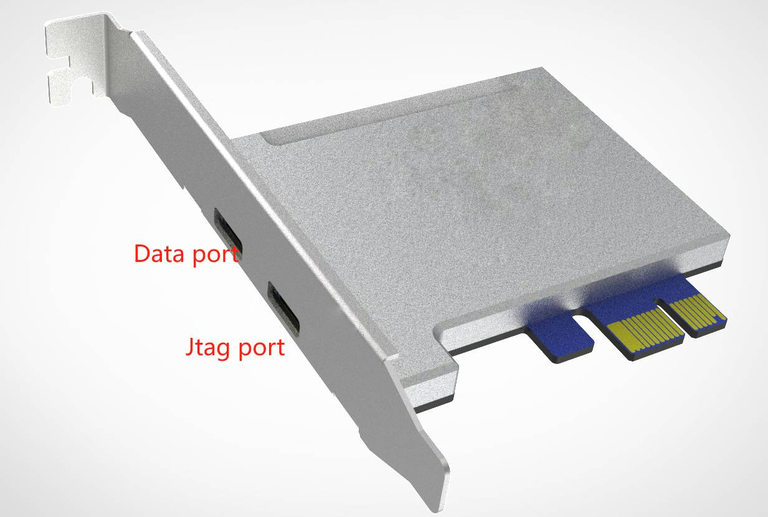
Use the included USB data cable to connect the Data Port on the DMA card to your 2nd PC.
Only plug one cable into the DMA card at a time. Do not connect both the JTAG and Data ports simultaneously.
Reference — Data & JTAG port locations:
⚙️ 4. Enter BIOS on Game PC
Power on your Game PC and enter BIOS/UEFI setup. Usually done by pressing DEL, F2, or ESC during boot (varies by motherboard).
🚫 5. Disable Virtualization (Required)
Virtualization interferes with DMA memory access and must be disabled.
Intel CPUs
VT-dIntel Virtualization TechnologyIOMMU(if available)
AMD CPUs
SVMIOMMU
⚠️ 6. Optional (If Available)
- Disable NX-Bit / Execute Disable Bit — only if listed in your BIOS. If not present, skip.
- Set PCIe Slot to Gen1 — recommended for maximum compatibility. Found under
Advanced > PCI Settingsor similar.
🧱 7. Disable Memory Integrity in Windows
On your Game PC:
- Open Windows Security
- Navigate to:
Device Security → Core Isolation → Core Isolation Details - Turn off "Memory Integrity"
If this section won't load, the setting may already be disabled or unsupported — no action needed.
✅ You're Done
Your DMA card is now installed and your Game PC is properly configured.
Next Step: Proceed to 2nd PC Setup to prepare your Radar PC.
If you run into issues, double-check that virtualization is fully disabled and all hardware connections are secure.